How to Tell If Your Account Is Compromised (4 Checks)
Four quick checks that reveal a hacked Microsoft 365 or Google account, and the exact steps to lock the attacker out before it spreads.
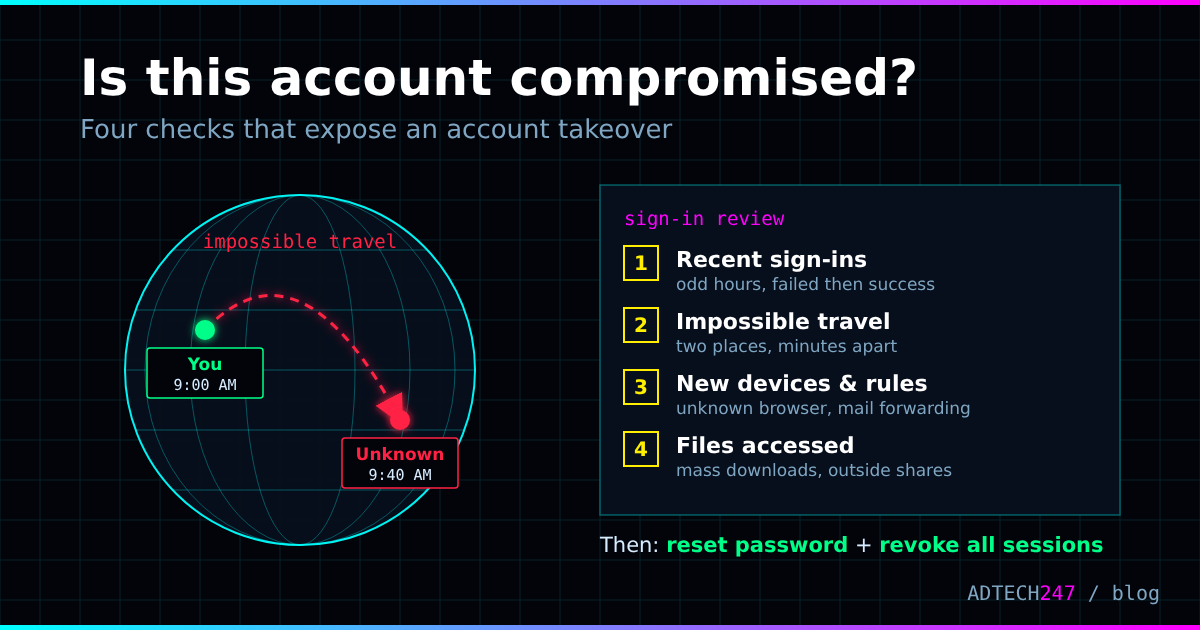
A single compromised account is one of the most common ways an attack starts. Once someone has a working login, they can read your email, reset other passwords, send invoices to your clients from your real address, and quietly look for a way to spread across your network. In many ransomware incidents, a stolen login is the first step.
The good news: account takeovers leave traces, and you can check for them in a few minutes. Catch it early and you stop the attacker before they escalate.
Why account compromise is so dangerous
An attacker with a valid username and password doesn't look like an attacker. They don't trip antivirus, because there's no malware. They look like you. That's why compromised accounts often go unnoticed for weeks, and why the checks below focus on where, when and how the account is being used rather than on anything suspicious being installed.
The 4 quick checks
1. Review recent sign-ins
Look at the account's sign-in history. In Microsoft 365, admins can see this in the Entra ID sign-in logs; individual users can check "My Sign-ins" at their account page. In Google, use "Your devices" and "Recent security activity" in the Google Account security page.
Look for sign-ins at odd hours, from locations you've never been, or failed attempts followed by a success.
2. Look for impossible travel
If the account signed in from New York at 9:00 and from another continent at 9:40, one of those wasn't you. Many cloud platforms flag this automatically as "impossible travel" or "atypical travel." Even if they don't, it's easy to spot when you read the sign-in list with locations.
Keep in mind that VPNs and mobile carriers can make locations look strange. What you're looking for is a pattern that doesn't fit how the person actually works.
3. Check for new devices and sessions
Look at the list of devices and apps that have access to the account. Red flags include:
- A device or browser you don't recognize
- A new phone number or authenticator app added for MFA
- Third-party apps granted access to the mailbox or files that nobody remembers approving
- Inbox rules that forward, delete or move messages. Attackers love rules that hide replies from the real owner while they run a fake-invoice scam.
4. See what files were accessed
Check recent activity in OneDrive, SharePoint or Google Drive. Mass downloads, a sudden spike in file access, or sharing links created to outside addresses are signs someone is collecting data.
What to do if something looks wrong
Move quickly and do these in order:
- Reset the password from a device you trust, and make it a new, unique password.
- Revoke all active sessions. This is the step people skip. A password reset alone may not kick out an attacker who already has a valid session token. In Microsoft 365, use "Revoke sessions"; in Google, sign out of all other sessions.
- Review MFA methods and remove anything you didn't add.
- Delete suspicious inbox rules and app permissions.
- Warn your contacts if emails may have been sent from the account, especially anyone you exchange payments with.
- Tell your IT provider. They can check whether the attacker reached other accounts or systems, and whether anything needs to be reported.
How to prevent it
- Turn on MFA everywhere, and prefer an authenticator app, passkey or security key over text-message codes.
- Use a password manager so every account has a unique password. Reused passwords are how one breach becomes five.
- Turn on sign-in alerts for risky logins in Microsoft 365 or Google Workspace.
- Block legacy authentication in Microsoft 365. Older protocols can bypass MFA.
- Practice the checks. Walk through the four checks on one account when nothing is wrong, so you know where everything is when something is.
The 30-second version
- Simple: A compromised account is one of the most common signs of an active attack.
- Meaningful: Catch it early and you stop the attacker before they cause real damage.
- Actionable: Four quick checks: recent sign-ins, impossible travel, new devices, files accessed. Then reset the password and revoke all sessions.
- Relevant: Account compromise is a common first step in ransomware and data theft.
- Timely: Audit one account today to practice the workflow.
FAQ
Is changing my password enough if I've been hacked?
Not always. If the attacker already has an active session, they may stay signed in after a password change. Revoke all sessions and remove any MFA methods or inbox rules they added.
How did they get my password if I have MFA?
Common routes include MFA fatigue (spamming approval prompts until someone taps Approve), phishing kits that relay your code in real time, and legacy protocols that skip MFA. Phishing-resistant methods like passkeys stop most of these.
Get a lesson like this every weekday.
Daily threat briefs, mini-lessons and infographics for defenders, small businesses and anyone who wants to stay a step ahead.
Keep reading
-
How a Router Failure Crashed the FAA: Lessons for Your Network
Learn why a faulty router brought down FAA systems, and how to prevent similar infrastructure failures in your business through testing and rollback planning.
ThreatIntel -
How AI-Powered Hacking Exploits Work & What to Watch For
Learn how attackers use AI agents to automatically find and exploit software vulnerabilities faster than ever—and what your business can do about it.
Threat Detection -
N-central Zero-Day: What MSPs and Their Clients Need to Know
Learn about the 4EverAble2Shell and Agent2Shell exploits targeting N-central, how they work, and what to do right now.
ThreatIntel